# Virtualisation Errors
### Error: VMX/SVM Not Supported
Error Message
VMX/SVM is not supported
#### Video Tutorial
#### Solutions
**1. Disable Windows Virtualization Features**
* Control Panel → Programs → Turn Windows features on or off
* Uncheck: Virtual Machine Platform, Hyper-V
* Restart PC
**2. Disable Hypervisor**
```
bcdedit /set hypervisorlaunchtype off
```
Restart PC.
**3. Delete Hyper-V Files (Advanced)**
System Files
This deletes system files. Create backup first!
Run PowerShell as Administrator:
```
takeown /F "C:\Windows\System32\hvix64.exe"
icacls "C:\Windows\System32\hvix64.exe" /grant *$(([System.Security.Principal.WindowsIdentity]::GetCurrent()).User.Value):F
takeown /F "C:\Windows\System32\hvax64.exe"
icacls "C:\Windows\System32\hvax64.exe" /grant *$(([System.Security.Principal.WindowsIdentity]::GetCurrent()).User.Value):F
del "C:\Windows\System32\hvix64.exe"
del "C:\Windows\System32\hvax64.exe"
```
### Error: Enable/Disable Intel VT-X/AMD-V in BIOS
#### Enable/Disable Virtualization
1. **Enter BIOS**: Restart PC, press BIOS key during startup
| Brand | BIOS Key |
| ------ | --------- |
| Dell | F2 or F12 |
| HP | F10 |
| Lenovo | F1 or F2 |
| ASUS | Del or F2 |
| Acer | F2 or Del |
| MSI | Del |
2. **Enable/Disable Virtualization**: Look for:
* Intel Virtualization Technology
* Intel VT-X
* AMD-V
* SVM Mode
* Virtualization Technology
3. **Set to Enabled/Disable**
4. **Save**: Press F10, confirm, restart
### Verify Virtualization
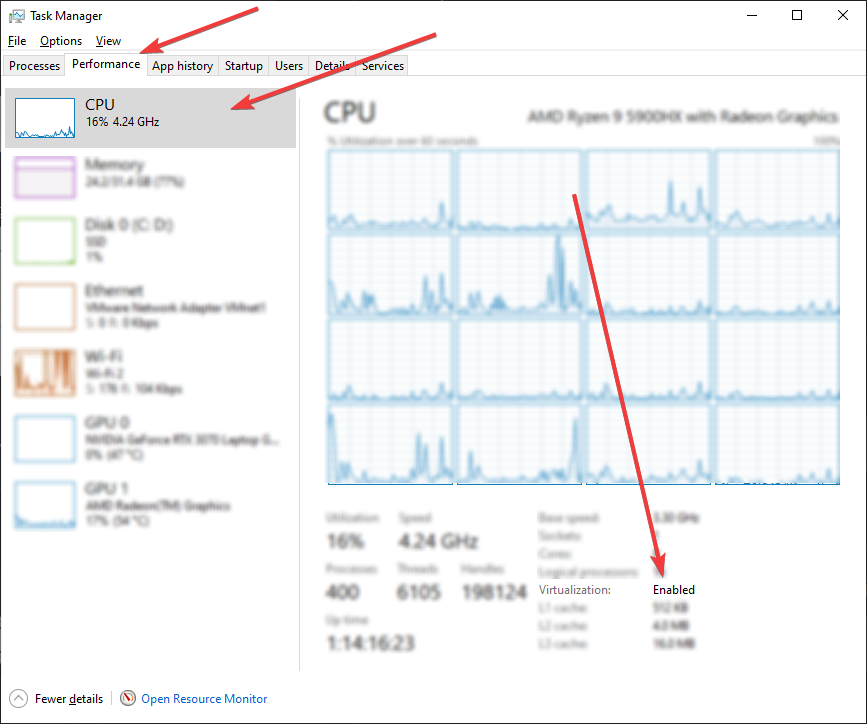
**Task Manager:**
* Press Ctrl+Shift+Esc
* Performance tab
* Check "Virtualization" at bottom
 **System Info:**
* Press Win+R → type `msinfo32`
* Check "Virtualization Enabled In Firmware"
### Error: PIN Not Set + Disable Hyper-V
Error Message
Please make sure PIN is not set and manually disable Hyper-V
#### Solution
1. **Disable PIN/Password**: Remove Windows Hello PIN
2. **Disable Virtualization in BIOS**: Enter BIOS, disable VT-X/AMD-V
3. **Delete Hyper-V Files**:
```
del "C:\Windows\System32\hvix64.exe"
del "C:\Windows\System32\hvax64.exe"
```
4. **Re-enable Virtualization**: Enter BIOS, enable VT-X/AMD-V again
5. **Restart PC**
### Enable/Disable Hyper-V
**Disable:**
1. Press Win+R → type `optionalfeatures`
2. Uncheck "Hyper-V"
3. Click OK, restart
**Enable:**
1. Press Win+R → type `optionalfeatures`
2. Check "Hyper-V" (all components)
3. Click OK, restart
### Common Issues
**Virtualization Conflicts**
* Disable antivirus temporarily
* Check for conflicting virtualization software
**Windows Updates**
* Updates may re-enable Hyper-V
* Repeat disable steps if needed
**BIOS Updates**
* BIOS updates may reset virtualization settings
* Re-check after BIOS update
For support, contact our team or check your manufacturer's documentation.
---
# Agent Instructions: Querying This Documentation
If you need additional information that is not directly available in this page, you can query the documentation dynamically by asking a question.
Perform an HTTP GET request on the current page URL with the `ask` query parameter:
```
GET https://guide.red-xservices.com/common-problems/virtualisation-errors.md?ask=
```
The question should be specific, self-contained, and written in natural language.
The response will contain a direct answer to the question and relevant excerpts and sources from the documentation.
Use this mechanism when the answer is not explicitly present in the current page, you need clarification or additional context, or you want to retrieve related documentation sections.
**System Info:**
* Press Win+R → type `msinfo32`
* Check "Virtualization Enabled In Firmware"
### Error: PIN Not Set + Disable Hyper-V
Error Message
Please make sure PIN is not set and manually disable Hyper-V
#### Solution
1. **Disable PIN/Password**: Remove Windows Hello PIN
2. **Disable Virtualization in BIOS**: Enter BIOS, disable VT-X/AMD-V
3. **Delete Hyper-V Files**:
```
del "C:\Windows\System32\hvix64.exe"
del "C:\Windows\System32\hvax64.exe"
```
4. **Re-enable Virtualization**: Enter BIOS, enable VT-X/AMD-V again
5. **Restart PC**
### Enable/Disable Hyper-V
**Disable:**
1. Press Win+R → type `optionalfeatures`
2. Uncheck "Hyper-V"
3. Click OK, restart
**Enable:**
1. Press Win+R → type `optionalfeatures`
2. Check "Hyper-V" (all components)
3. Click OK, restart
### Common Issues
**Virtualization Conflicts**
* Disable antivirus temporarily
* Check for conflicting virtualization software
**Windows Updates**
* Updates may re-enable Hyper-V
* Repeat disable steps if needed
**BIOS Updates**
* BIOS updates may reset virtualization settings
* Re-check after BIOS update
For support, contact our team or check your manufacturer's documentation.
---
# Agent Instructions: Querying This Documentation
If you need additional information that is not directly available in this page, you can query the documentation dynamically by asking a question.
Perform an HTTP GET request on the current page URL with the `ask` query parameter:
```
GET https://guide.red-xservices.com/common-problems/virtualisation-errors.md?ask=
```
The question should be specific, self-contained, and written in natural language.
The response will contain a direct answer to the question and relevant excerpts and sources from the documentation.
Use this mechanism when the answer is not explicitly present in the current page, you need clarification or additional context, or you want to retrieve related documentation sections.