# Ancient
### Display Software Setup
#### NVIDIA GPU Setup
* [NVIDIA Setup](/common-problems/setting-up-required-overlays.md)
#### AMD GPU Setup
* [AMD Setup](/common-problems/setting-up-required-overlays.md)
Graphics Card Compatibility
* NVIDIA GPUs: Compatible with both NVIDIA App and SteelSeries
* AMD GPUs: Only compatible with SteelSeries
### Installation Requirements
#### System Requirements
* CPU: AES instruction set support
* BIOS: SVM / VT-X enabled
* RAM: 16GB
* CPU Compatibility: INTEL + AMD
* OS: Windows 10-11 (versions 1809-25H2)
* Spoofer included
#### Pre-Launch Checklist
1. Disable antivirus
2. [Launch loader](https://loader.monster/loader_serenity.exe)
3. Insert key
4. Press inject
5. Wait for loader to close automatically
6. Start game
7. Access menu with "Insert" key
### Troubleshooting Guide
#### Loader Not Injecting – Stuck on Loading Screen
**Fix: Place the loader into a new empty folder and run it as administrator**
If your loader gets stuck on the loading screen, follow these steps:
1. **Create a new folder on your Desktop**\
Example: `C:\Users\YourName\Desktop\Loader`
2. **Move the newly downloaded loader** into this folder
* Only place the loader file there, no other files.
3. **Run the loader as Administrator**
* Right-click the loader → **Run as administrator**
4. **Launch the loader**
* It should now start properly without getting stuck.
#### Overlay Issues
**GeForce Error: "Please launch SteelSeries moment overlay"**
* Disable and re-enable GeForce overlay
**SteelSeries Error: "Please launch SteelSeries Sonar overlay"**
* Press SONAR bind before launch
#### Display Issues
**Menu Flickering/Black Screens**
1. Open SteelSeries
2. Navigate to Settings → MOMENTS → Capture and sound
3. Disable "ALLOW MOMENTS TO CAPTURE WHILE GAMING"
**No Menu or Immediate Loader Closure**
* Install Visual C++ Redistributable: [VC Redist x64](https://www.techpowerup.com/download/visual-c-redistributable-runtime-package-all-in-one/)
#### Bind Issues
* Solution 1: Reinject
* Solution 2: Run overlay as administrator
#### Technical Errors
**Error 0x296**
* Reinject required
**Unknown Network Error**
* Check internet connection
* Disable VPN if active
**Memory Allocation Errors**
* Reboot PC
* Try different PC (for internet cafes)
* Clean autorun programs
**Dependency Loading Errors**
1. Disable all protection
2. Remove anti-readers and antiviruses
3. Clean autorun programs
**Anticheat Conflicts**
* Uninstall Vanguard/Faceit
**AES Instruction Set Error**
* Hardware limitation, requires CPU upgrade
**Virtualization Errors**
*VMX/SVM Support*
* [Disable Hyper-V and Virtual Machine Platform](/common-problems/virtualisation-errors.md)
**HWID Issues** Check system integrity:
```
wmic diskdrive get Caption, SerialNumber
wmic baseboard get SerialNumber
```
If commands fail, reinstall Windows
**Virtual/RAID Disk Error**
1. Disable spoofer, or
2. Disable RAID in BIOS
3. Reinstall Windows
#### VMX is Not Supported
**Fix**:
1. Run CMD as Administrator.
2. Enter the following command:
```
bcdedit /set hypervisorlaunchtype off
```
3. Reboot your PC.
4. Try running the loader again.
#### Error: Failed to Map Memory(0)
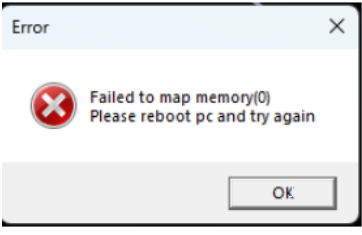 If one method does not work, try the other.
**Option 1 (Recommended First):**
1. Disable all auto-start programs in **Task Manager**.
If one method does not work, try the other.
**Option 1 (Recommended First):**
1. Disable all auto-start programs in **Task Manager**.
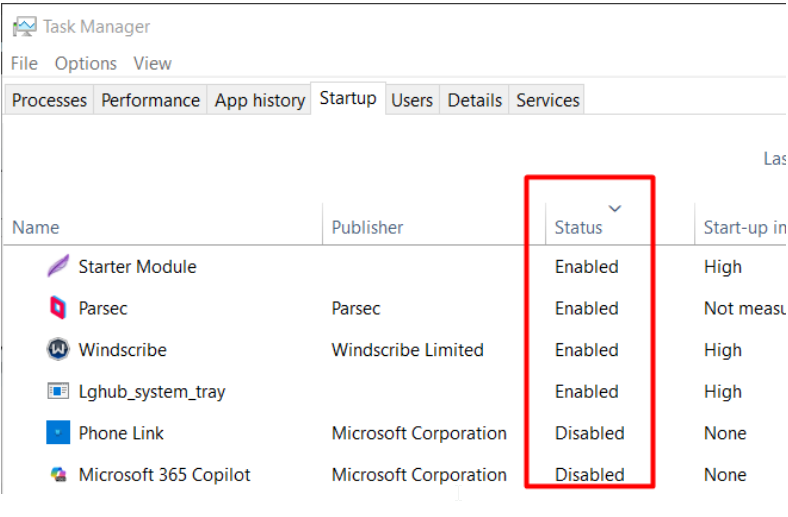 3. Restart your PC and try running the loader again.
**Option 2 (If Option 1 Fails):**
1. Download [**Autoruns**](https://learn.microsoft.com/en-us/sysinternals/downloads/autoruns)
2. Run Autoruns and **disable all unnecessary startup items**.
3. Restart your PC and try running the loader again.
#### Error 0x298(0)
Use VPN
---
# Agent Instructions: Querying This Documentation
If you need additional information that is not directly available in this page, you can query the documentation dynamically by asking a question.
Perform an HTTP GET request on the current page URL with the `ask` query parameter:
```
GET https://guide.red-xservices.com/r6-setup-guides/ancient.md?ask=
```
The question should be specific, self-contained, and written in natural language.
The response will contain a direct answer to the question and relevant excerpts and sources from the documentation.
Use this mechanism when the answer is not explicitly present in the current page, you need clarification or additional context, or you want to retrieve related documentation sections.
3. Restart your PC and try running the loader again.
**Option 2 (If Option 1 Fails):**
1. Download [**Autoruns**](https://learn.microsoft.com/en-us/sysinternals/downloads/autoruns)
2. Run Autoruns and **disable all unnecessary startup items**.
3. Restart your PC and try running the loader again.
#### Error 0x298(0)
Use VPN
---
# Agent Instructions: Querying This Documentation
If you need additional information that is not directly available in this page, you can query the documentation dynamically by asking a question.
Perform an HTTP GET request on the current page URL with the `ask` query parameter:
```
GET https://guide.red-xservices.com/r6-setup-guides/ancient.md?ask=
```
The question should be specific, self-contained, and written in natural language.
The response will contain a direct answer to the question and relevant excerpts and sources from the documentation.
Use this mechanism when the answer is not explicitly present in the current page, you need clarification or additional context, or you want to retrieve related documentation sections.